Connect Telegram
Let Meerlume create your Telegram bot automatically in a couple of taps, or connect a bot you already have.
Telegram is the fastest channel to launch: there is no business verification and no waiting. In most cases you never touch BotFather or copy a token — you confirm the bot in Telegram and Meerlume does the rest.
Automatic setup (recommended)
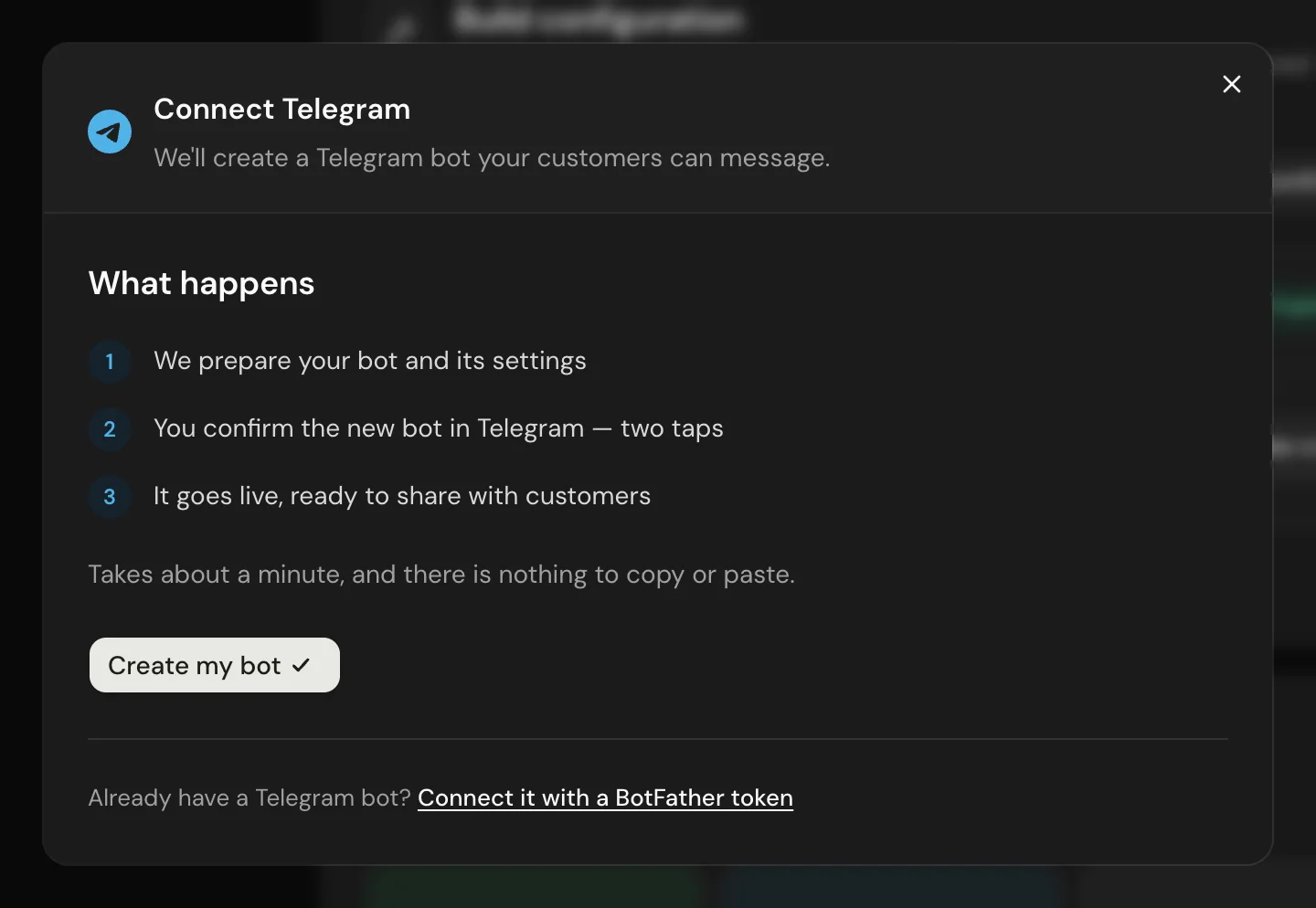
Meerlume asks Telegram to create a bot that it manages on your behalf. You confirm it once; no tokens change hands.
Open your bot, go to the Telegram channel and choose Create my bot. Meerlume publishes the bot if it is still a draft, then hands you a confirmation link.
Choose Create my bot
Meerlume prepares a bot name and a suggested username based on your bot, so there is nothing to think up.
Open Telegram
Press Open Telegram to jump straight into the app — desktop or mobile. If you are on a computer and would rather confirm on your phone, scan the QR code shown next to the button.
Confirm the bot
Telegram shows a Create Bot screen with the username already filled in. Type a display name — this is what customers see in the chat header — and press Create.
Wait a moment
Keep the Meerlume window open. As soon as Telegram creates the bot, Meerlume detects it, connects it, and the dialog turns green with your share link.
The bot belongs to you
Telegram creates the bot under your own account — Meerlume only manages it for you. You can see it in BotFather like any other bot, and Telegram allows 20 bots per account (40 with Telegram Premium).
The confirmation link is valid for 15 minutes. If it expires, or if anything goes wrong, the dialog offers to start again or to switch to manual setup.
What Meerlume sets up for you
- The webhook, so messages reach your flow. You never configure this by hand.
- The command menu customers see in Telegram: /start to begin, plus /bookings to reschedule or cancel when your bot has a calendar.
- The bot's description, taken from your bot's description in Settings.
Turning the calendar on later
If you enable the calendar after connecting, the /bookings command is added to the menu automatically. There is no need to reconnect.
Manual setup with BotFather
Use this when you already have a bot, when you are on an older Telegram app, or if you have hit Telegram's bot limit.
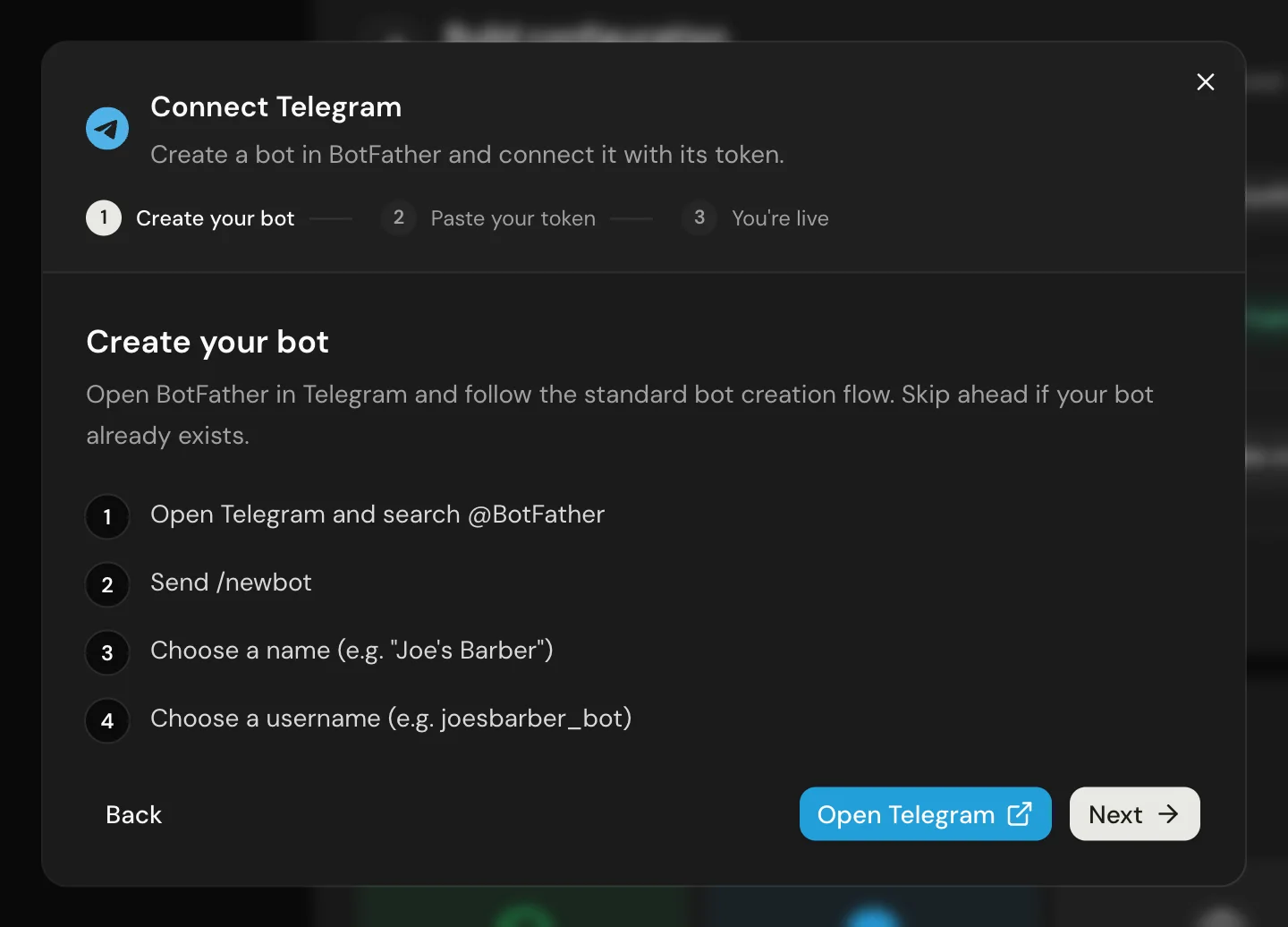
In the Telegram dialog, follow the “Already have a Telegram bot?” link at the bottom. You will create a bot in BotFather yourself and paste its token into Meerlume.
Open BotFather
In Telegram, search for @BotFather (look for the verified checkmark) and send /newbot.
Choose a display name
The friendly name customers see in the chat header, for example "RoadReady Bookings". It can contain spaces.
Choose a username
It must be unique across Telegram and end in bot, for example roadready_booking_bot. If it is taken, add your business name or location as a prefix.
Copy the token and paste it in
BotFather replies with a token like 123456789:AABBcc.... Copy the whole string and paste it into Meerlume. The token is verified with Telegram and the webhook is registered for you.
Keep the token private
Anyone with the token can control the bot. Never share it publicly or commit it to version control. If it is ever exposed, send /revoke to BotFather and reconnect with the new token.
Your bot's settings stay yours
For a bot you bring yourself, Meerlume does not change its description or command menu — anything you configured in BotFather is left exactly as it is.
Disconnecting and deleting the bot
Disconnecting removes the channel from Meerlume and stops the bot from answering customers. It does not delete the bot from Telegram.
Only BotFather can delete a bot
Telegram does not allow apps to delete bots — not even ones they created. A disconnected bot still exists on your Telegram account and still counts toward your 20-bot limit. To remove it for good, send /deletebot to BotFather and choose it from the list.
The same applies to a setup that failed halfway: if Telegram created the bot but the connection did not finish, that bot is still on your account. Delete it in BotFather if you do not plan to use it.
Deleting the whole bot in Meerlume behaves the same way, and does a little more: it unhooks the bot at Telegram, so Telegram stops sending its messages to us immediately instead of quietly delivering to a bot we no longer have. The bot itself still lives on your Telegram account, so the delete dialog shows you these steps at the moment you need them.
Open BotFather
Search for BotFather in Telegram, or use the Open BotFather link in Meerlume's delete dialog, which opens it on the delete flow.
Send /deletebot
BotFather replies with a list of the bots on your account.
Pick the bot, then confirm
Choose the username Meerlume showed you, then send “Yes, I am totally sure.” exactly as BotFather asks (or tap the button it offers). The username is released and stops counting toward your bot limit — 20 per account, 40 with Telegram Premium.
Related guides
Continue with the next part of the setup once this step is stable.
Preview drafts and publish
Test the conversation before it goes live, understand the draft/live split, and publish only when the workflow is ready.
Connect WhatsApp
Connect your WhatsApp number in about a minute — Meerlume handles the Meta app, the webhook and the permissions — or bring your own Meta app if you already have one.
Connect website chat
Put your bot on your own site as a chat bubble or in the page, and get a chat link you can share anywhere.
Triage submissions in the inbox
Read what customers sent, change status, reply or take over the chat, approve or reschedule bookings, and archive — keep follow-up moving without getting buried.