Connect WhatsApp
Connect your WhatsApp number in about a minute — Meerlume handles the Meta app, the webhook and the permissions — or bring your own Meta app if you already have one.
Use this guide when the flow is ready and you want to connect the WhatsApp number customers should message. Meerlume is a WhatsApp Business Platform Tech Provider, so the Meta side is done for you: you sign in with Meta, pick a number, and that is it. The manual route further down is still there if you would rather run your own Meta app.
Before you start
- A Facebook account with admin access to your business — the account you sign in with during the connection.
- A phone number that is not already on WhatsApp — it must be able to receive an SMS or a call, and it cannot be active on any WhatsApp account, personal or Business app. If it is, delete that account first (WhatsApp → Settings → Account → Delete account) and wait for it to clear.
- The bot must be published — a draft has nothing to answer with. Meerlume will tell you if it is not.
A landline works
The number only has to receive the one-time code, and Meta can deliver it by voice call as well as SMS. A landline or a spare SIM is fine. What it cannot be is a number already in use on WhatsApp.
Connect in one click (recommended)
You authorise Meerlume inside Meta's own dialog. No developer account, no tokens, nothing to copy across.
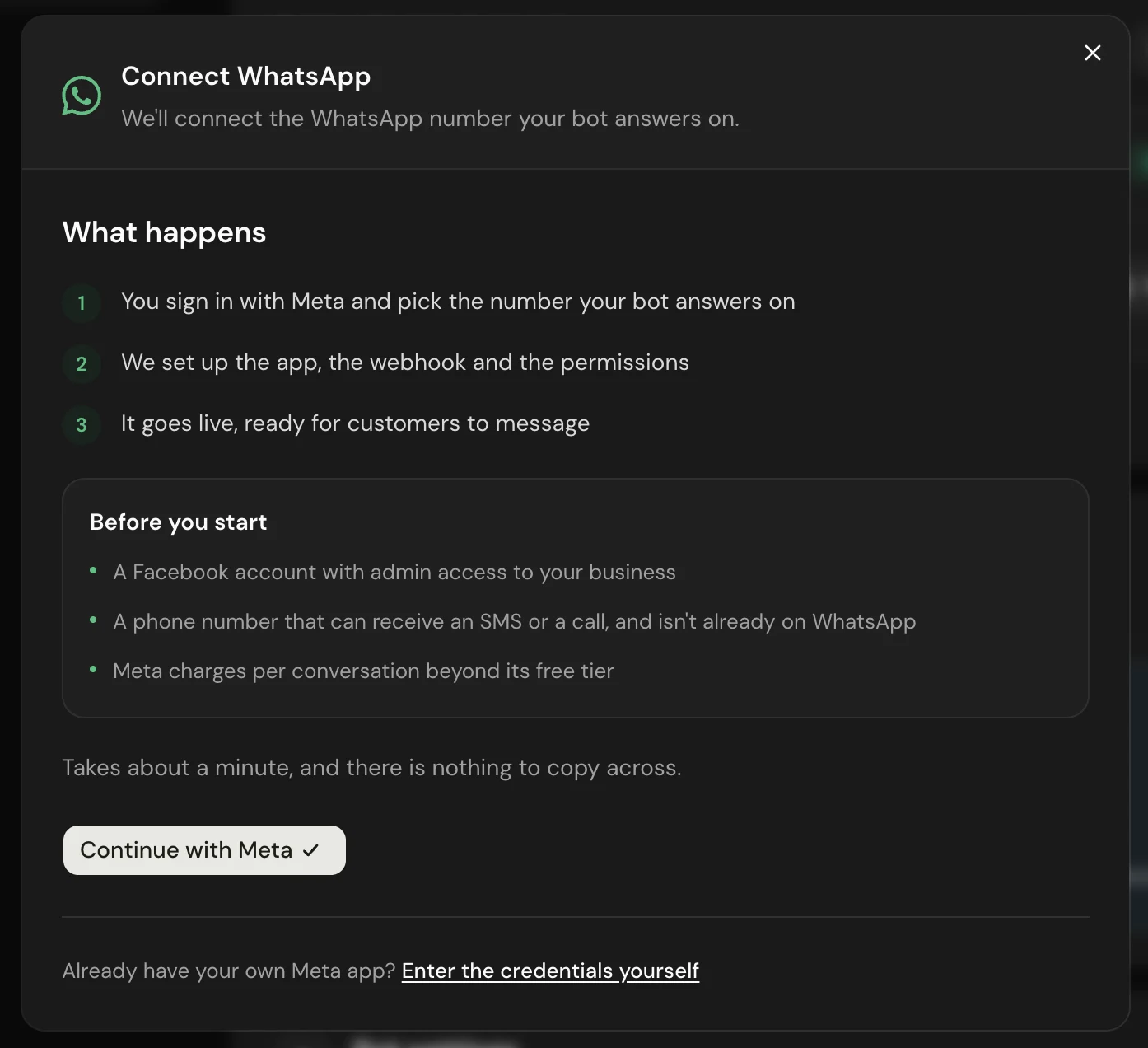
Open your bot, go to Bot settings and choose Connect WhatsApp, then Continue with Meta. Everything happens inside Meta's window, and Meerlume picks up from there.
Sign in with Meta
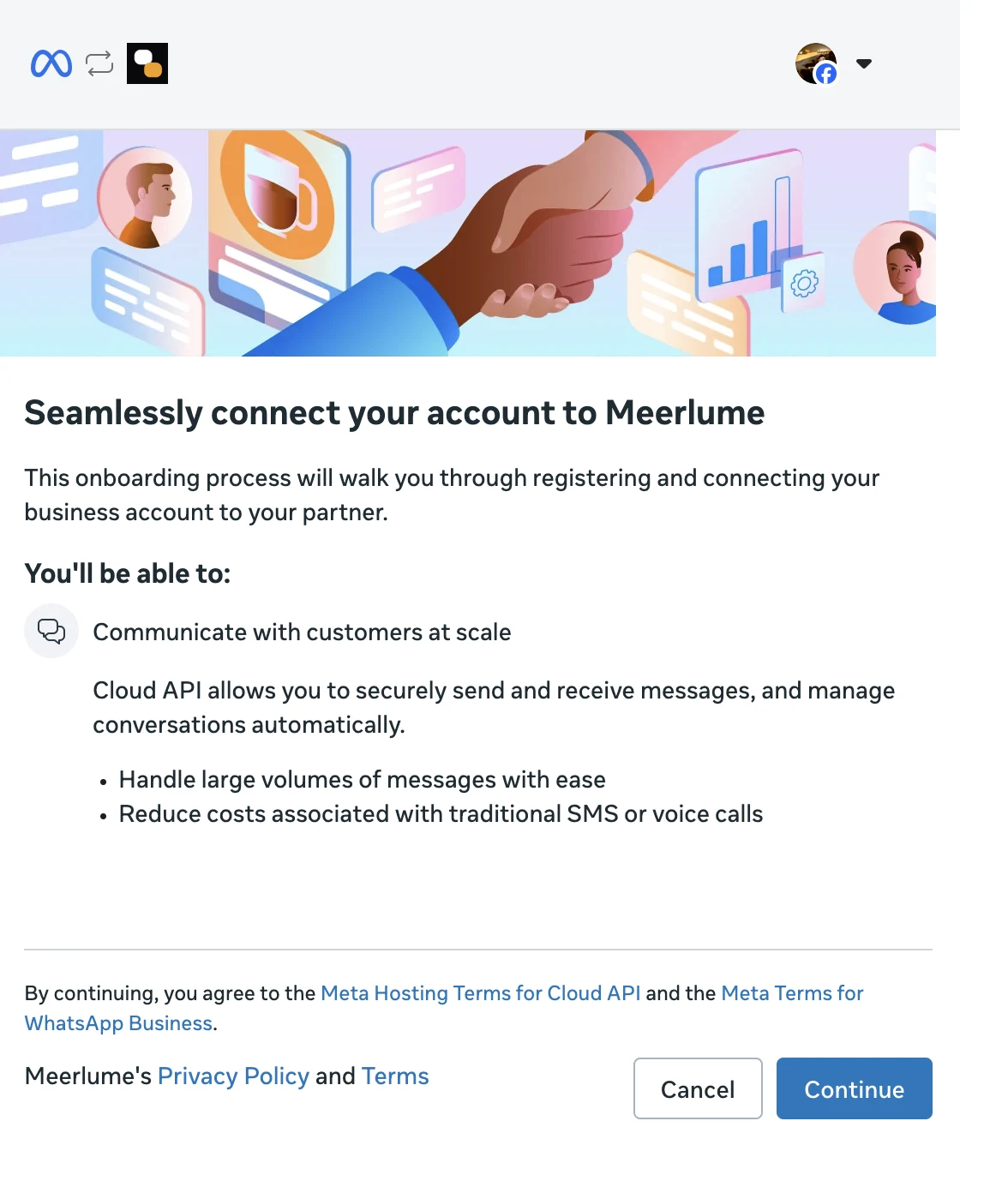
Meta's dialog opens and asks you to log in with your Facebook account. This is Meta's own screen, not ours — we never see your password.
Choose your business
Select the business portfolio this number belongs to, or create one. If you have never used Meta's business tools before, creating one here takes a few seconds.
Add your phone number
Enter the number your customers will message and verify it with the code Meta sends by SMS or voice call. Fill in your business display name — this is what customers see in the chat header.
Finish
Press Finish and stay on the page. Meerlume registers the number, wires the webhook and sets the permissions while you wait, then turns the dialog green.
Do not linger on the last screen
Meta's authorisation is short-lived, so press Finish promptly once it appears rather than leaving the window open. If it does expire, nothing is broken — start the connection again.
What Meerlume sets up for you
These are the steps the manual route asks you to do by hand. On the automatic route they happen while the dialog is open.
- The Meta app and its permissions — you never create a developer app or generate an access token.
- The webhook, so customer messages reach your flow. There is no Callback URL or Verify token to paste anywhere.
- Registering the number for messaging, including its security PIN.
- Keeping the connection working. Nothing expires after a day and needs replacing.
The account stays yours
The WhatsApp Business Account is created under your own business portfolio — Meerlume only manages it on your behalf. You can see it in Meta Business Suite like any other asset, and disconnecting in Meerlume hands it fully back.
Try it, then go live
When the dialog turns green it tells you the number is live. Message it from your own phone: the reply comes from your flow, the conversation appears in your inbox, and you can take over from there at any point.
What Meta charges
What your customers send you is free. From 1 October 2026 Meta charges your business for the messages your bot sends back, per message, at its own rate for the customer's country, once a number has used its free monthly allowance (1,000 messages per number when this was written, which covers a small business's normal month). Conversations that start from a Click to WhatsApp ad stay free for 72 hours. Meta bills you directly, so expect to add a payment method to your business. That relationship is between you and Meta: nothing goes through Meerlume and we add nothing on top. Meta's pricing page has the current rates.
Deploy order
A good sequence is: finish the draft, preview it, publish it, then connect or verify the live channel.
Manual setup — if you already have your own Meta app
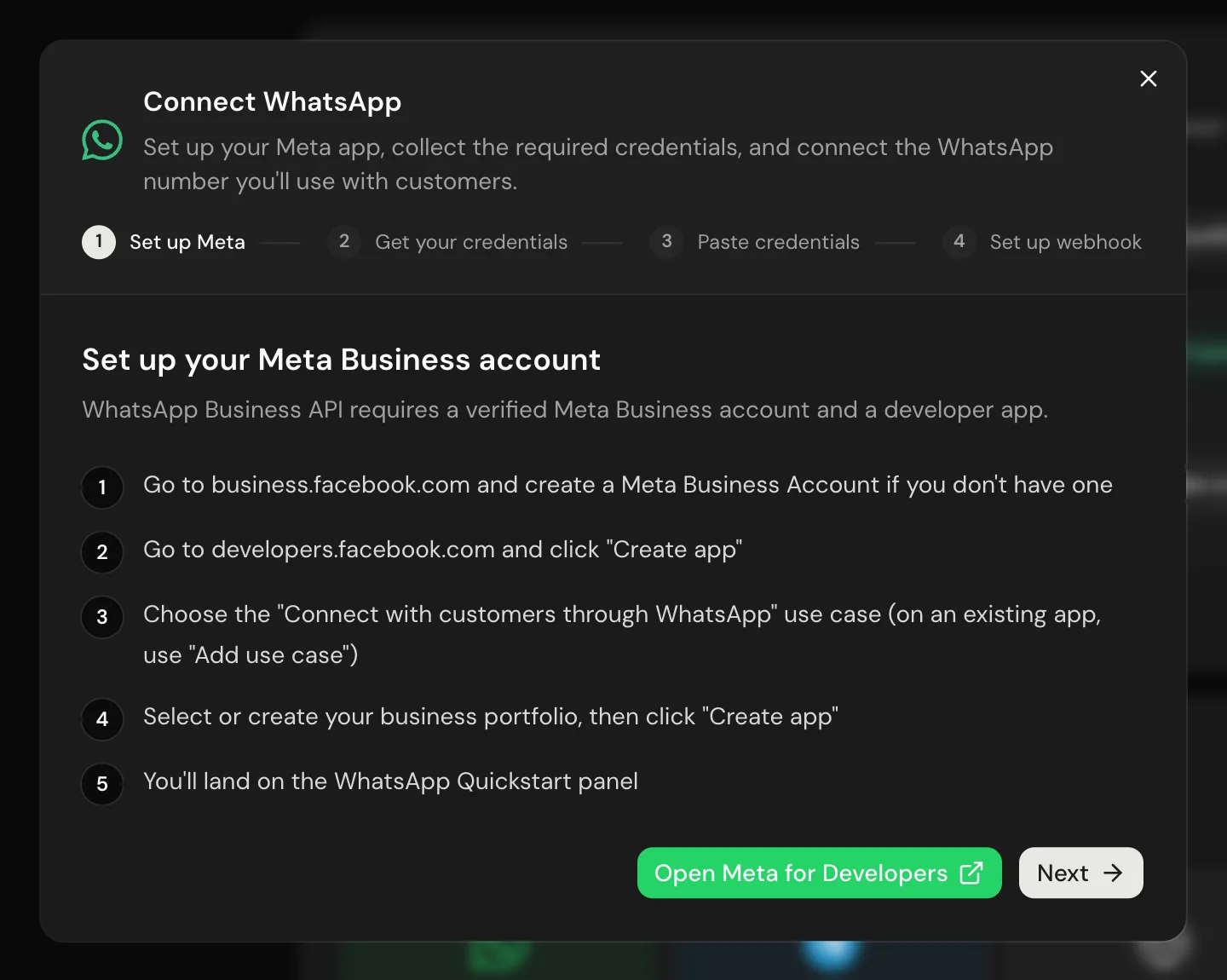
Only needed if you run your own Meta developer app and want Meerlume to answer on it. Budget 20–30 minutes for the Meta side.
Choose Enter the credentials yourself at the bottom of the connection dialog. You will need a Meta Business Account linked to a Facebook Page, and the same unused phone number as above. Business verification is worth starting early: unverified accounts can only message five pre-approved contacts, and verification takes 2–10 business days.
Create the app
At developers.facebook.com, choose My Apps → Create App and pick the "Connect with customers through WhatsApp" use case. Meta provisions a test WhatsApp Business Account and test number, then asks you to link your Business Account.
Collect the Phone Number ID and WABA ID
Both are in Products → WhatsApp → API Setup. Use the test number's ID while testing and switch to your real number's ID once you add it.
Create a permanent access token
Not the one on the API Setup panel — see the warning below.
Add your real number
Under Products → WhatsApp → Phone Numbers, click Add Phone Number, enter your business display name and category, then verify by SMS or voice call. The test number can only reach five pre-approved contacts.
Paste the credentials into Meerlume
Enter the Phone Number ID, WABA ID and access token in the dialog.
Set up the webhook, then switch the app to Live
Paste the Callback URL and Verify token Meerlume shows you into WhatsApp → Configuration → Webhook and subscribe to the messages field. Then set App Mode from Development to Live, which needs a Privacy Policy URL under App settings → Basic.
Create a permanent token — this step is not optional
The token in the API Setup panel expires within about a day. Everything will look fine when you test it, and a day later your bot will stop replying with no error and no notification. Create a permanent one instead: Meta Business Settings → Users → System Users → Add, give it Admin access, then Assign assets and add your app and WhatsApp account with full control. Click Generate new token, select your app, set expiration to Never, and tick all three permissions: business_management, whatsapp_business_management and whatsapp_business_messaging. Copy it immediately — Meta will not show it again.
Development mode swallows customer messages
While the app is in Development mode Meta's delivery of customer messages is unreliable — messages may never reach us, with nothing arriving and nothing erroring, so the bot looks dead for no visible reason. Switch to Live before you test with a real customer.
Related guides
Continue with the next part of the setup once this step is stable.
Preview drafts and publish
Test the conversation before it goes live, understand the draft/live split, and publish only when the workflow is ready.
Connect Telegram
Let Meerlume create your Telegram bot automatically in a couple of taps, or connect a bot you already have.
Connect website chat
Put your bot on your own site as a chat bubble or in the page, and get a chat link you can share anywhere.
Connect Facebook Messenger
Let customers message your bot from your Facebook Page. Sign in with Facebook, pick the Page, and Meerlume does the rest.
Connect Instagram
Let customers message your bot in Instagram DMs. Sign in with a professional Instagram account — no Facebook Page needed.